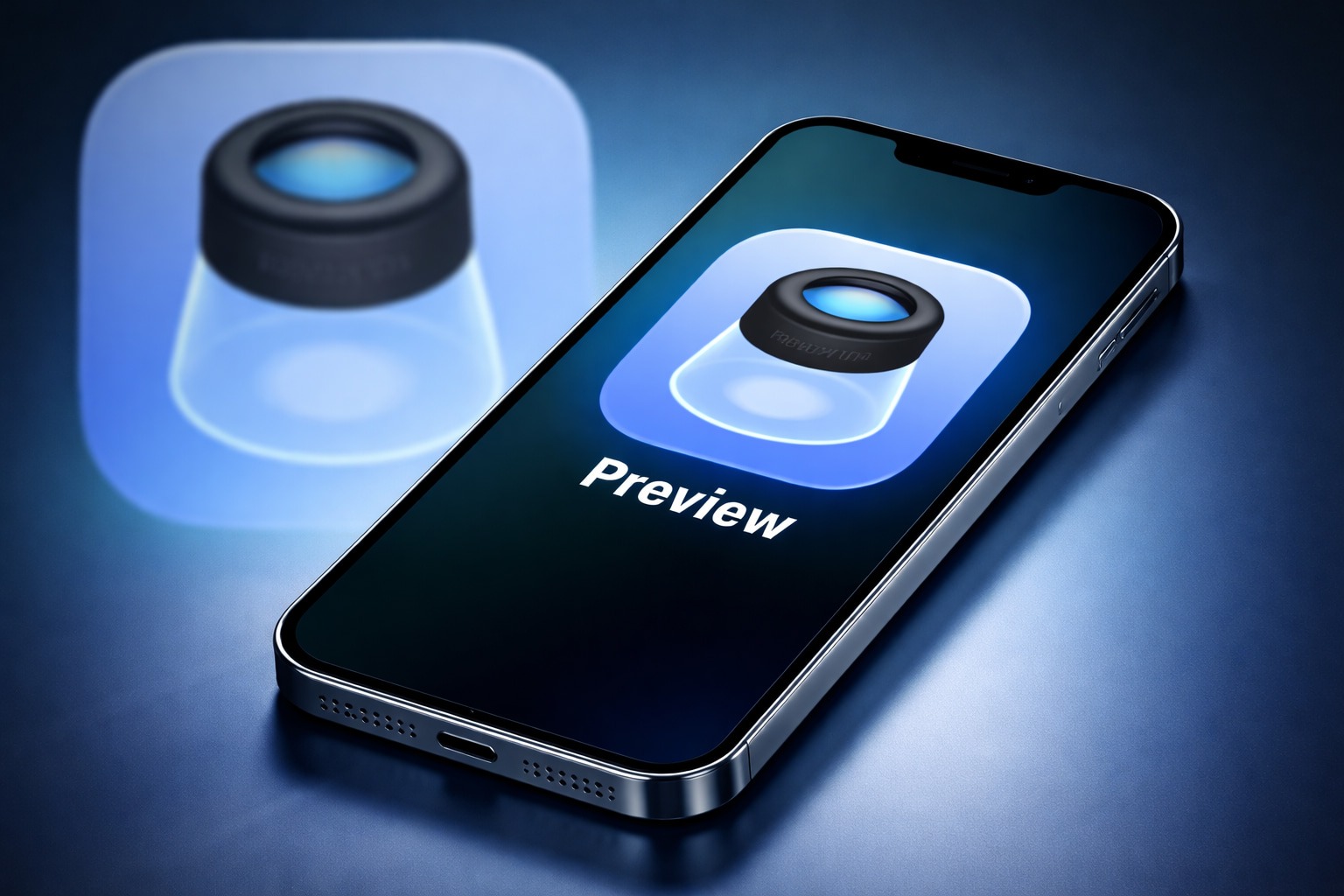
Apple’s iOS 26 introduced something iPhone users have wanted for years: a dedicated Preview app — the same name as the longtime Mac utility for quick PDF and image work — now rebuilt for iPhone (and iPad) as a first‑party hub for documents. Instead of bouncing between Files, Mail attachments, and third‑party PDF editors, iOS 26 puts scanning, form filling, signatures, annotations, and exporting in one place. [1]
Why the new Preview app matters right now
On December 31, 2025, this might sound like a “small” software feature — but it’s the kind of practical change that quietly reshapes how people use their iPhone every day. In a recent hands‑on, 9to5Mac highlighted how Preview turns iPhone into a more focused PDF workspace, especially for big life admin moments (think real‑estate paperwork) where you’re constantly opening, comparing, and editing documents. [2]
Apple itself frames Preview as a new, dedicated PDF editor on iPhone with built‑in tools like AutoFill, document scanning, and export options — exactly the features most users previously had to piece together across apps. [3]
What Preview can do on iPhone in iOS 26
Preview in iOS 26 is designed around the two things most people do on mobile: work with PDFs and handle images fast. Here’s what it’s built for, based on Apple’s iPhone User Guide and iOS 26 feature notes:
- Open and view PDFs and images directly inside Preview (with tabs like Recents, Shared, and Browse). [4]
- Scan paper documents into a PDF without leaving Preview. [5]
- Fill out PDF forms and use AutoFill suggestions for faster form completion. [6]
- Add signatures (and text boxes) to forms. [7]
- Highlight, underline, or strike through text in a PDF. [8]
- Lock PDFs with a password when you need to protect a document. [9]
- Remove an image background inside Preview (handy for quick cleanup when sharing visuals). [10]
- Export PDFs and images in different file types or sizes (useful for submissions, uploads, and sharing). [11]
This isn’t just another shortcut screen: Apple positions Preview as a standalone “home” for PDFs and images, similar to how Preview works on Mac — and iOS now routes many PDFs and images into Preview by default. [12]
The workflow upgrade: less “hunt and peck,” more focus
One of the best arguments for the Preview app is simply that it reduces friction.
In the 9to5Mac hands‑on, the writer describes how Preview makes it easier to keep one key document open while you browse through a folder of related files elsewhere — for example, keeping a contract or disclosure PDF open while jumping between other PDFs and images stored in Files. [13]
Just as importantly, iOS 26 doesn’t remove your old habits: even if PDFs open in Preview by default, you can still view documents directly in Files using Quick Look when you want a lightweight preview instead of full editing mode. [14]
How to open PDFs and images in Preview on iPhone
Apple’s own instructions make it clear that Preview is meant to be usable without extra steps or “file management” thinking:
- Open the Preview app.
- Use:
- Recents to see what you opened recently,
- Shared for items shared with you, or
- Browse to navigate locations (and even tags).
- Tap a file to open it. [15]
Apple also notes a very real‑world scenario: if someone emails you a PDF form, you can tap the attachment in Mail to open and complete it in Preview — then reply with the completed form. [16]
How to fill out forms and add signatures fast
Form filling is where Preview can save the most time — especially when a PDF has lots of fields.
Apple’s official steps are straightforward:
- Open Preview and open a PDF form.
- Tap the Form Filling button.
- Tap a field and type, or tap an AutoFill suggestion above the keyboard.
- To add a signature or a text box, tap the Add button. [17]
That AutoFill integration is a key point Apple highlights as part of Preview’s “power features” on iPhone. [18]
How to password‑protect a PDF in Preview
If you’re dealing with sensitive documents (IDs, contracts, medical info), the ability to lock a PDF without downloading another app is a big deal.
Apple’s steps to lock a PDF:
- Open Preview and open the PDF.
- Tap the Actions menu next to the filename, then tap Lock.
- Turn on Require Password, enter the password in both fields, then tap Done. [19]
Apple also flags a practical safety tip: if you want a non‑password copy too, duplicate the file before locking it. [20]
Which iPhones can use Preview in iOS 26
Preview is a built‑in iOS 26 feature — so the key question is whether your iPhone supports iOS 26.
Apple lists iOS 26 compatibility starting with iPhone 11 series and including newer models, plus iPhone SE (2nd generation and later). [21]
If your iPhone is on iOS 26 (and particularly updated to the latest iOS 26.x release available to you), you should see Preview as part of the system experience described in Apple’s iOS 26 documentation. [22]
The bigger iOS 26 news context heading into 2026
Even though Preview is the star of today’s story, it’s also part of a wider theme in iOS 26: Apple is adding more “real apps” rather than hiding features inside menus.
- iOS 26 added two brand‑new system apps to the Home Screen: Apple Games and Preview. [23]
- Apple’s iOS 26 update notes explicitly call Preview a dedicated PDF editor with AutoFill, scanning, and export tools. [24]
And if you’re updating specifically to get Preview (or to make it work smoothly), it’s worth noting the latest iOS 26 software cycle:
iOS 26.2 is the current major update — and it’s not just about new features
Apple released iOS 26.2 in December, adding changes like more control over the Lock Screen’s “Liquid Glass” look and improvements to AirDrop and Reminders, among other updates. [25]
iOS 26.2 also delivered critical security fixes
Apple’s security documentation for iOS 26.2/iPadOS 26.2 confirms the release date (December 12, 2025) and includes a long list of patched issues. [26]
Security researchers also reported that Apple shipped emergency updates addressing two WebKit zero‑day vulnerabilities used in highly targeted attacks, tracked as CVE‑2025‑43529 and CVE‑2025‑14174 — and urged users to update. [27]
Bottom line: Preview is the “quiet power feature” of iOS 26
A lot of iOS updates are about new visuals or headline features. Preview is different: it’s a utility app that makes your iPhone better at the unglamorous tasks you do constantly — scanning paperwork, signing forms, annotating PDFs, and sending clean copies back to people.
If you haven’t opened Preview yet, the best time is now: grab a PDF you’ve been meaning to sign, scan a document straight into the app, or try AutoFill on a form. For many users, Preview will quickly become one of the most-used apps that iOS 26 quietly added. [28]

References
1. support.apple.com, 2. 9to5mac.com, 3. support.apple.com, 4. support.apple.com, 5. support.apple.com, 6. support.apple.com, 7. support.apple.com, 8. support.apple.com, 9. support.apple.com, 10. support.apple.com, 11. support.apple.com, 12. 9to5mac.com, 13. 9to5mac.com, 14. 9to5mac.com, 15. support.apple.com, 16. support.apple.com, 17. support.apple.com, 18. support.apple.com, 19. support.apple.com, 20. support.apple.com, 21. www.apple.com, 22. support.apple.com, 23. 9to5mac.com, 24. support.apple.com, 25. www.theverge.com, 26. support.apple.com, 27. www.bleepingcomputer.com, 28. support.apple.com