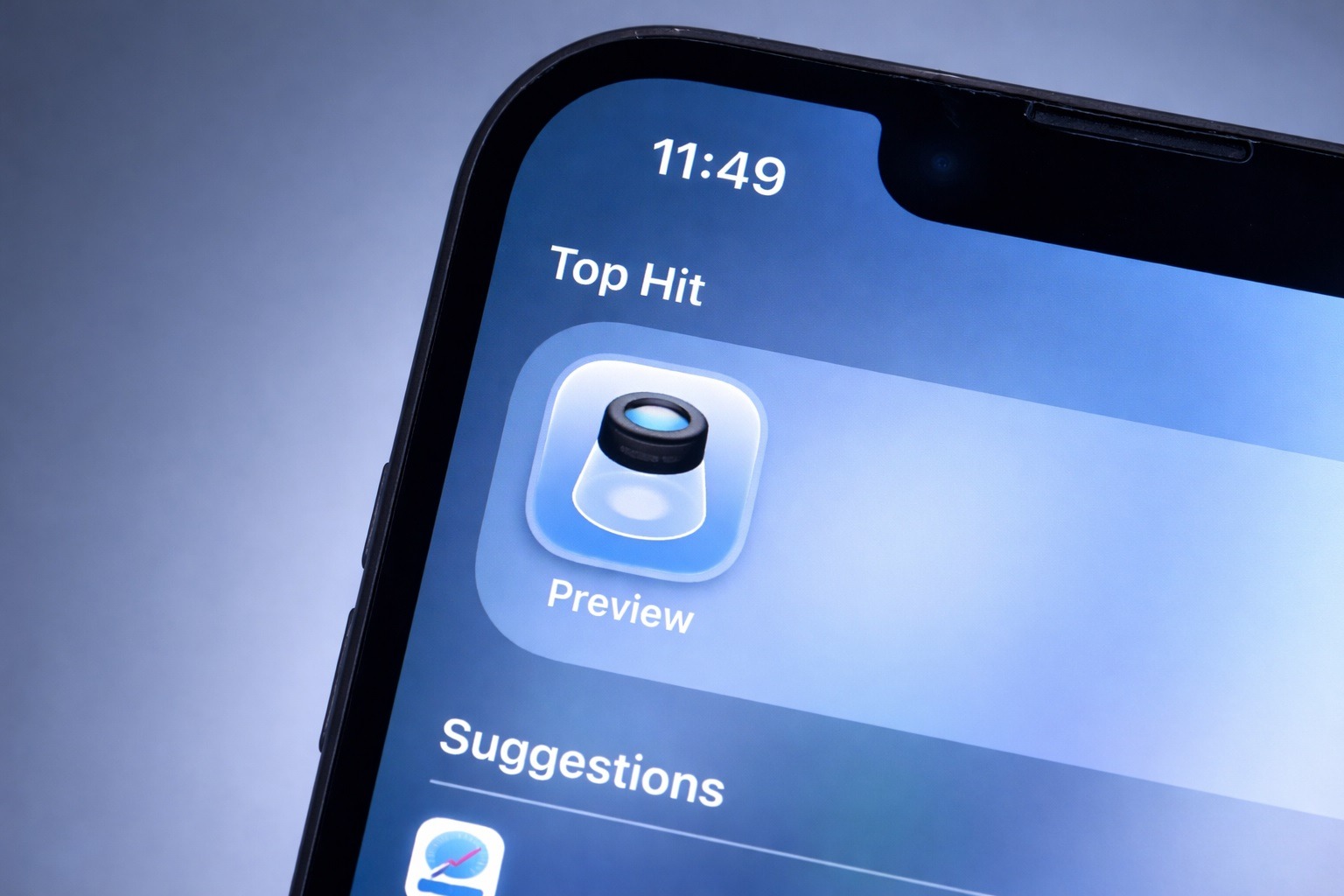

Apple’s built-in Preview app in iOS 26 finally makes it easy to edit PDFs on iPhone—add text, sign documents, scan paperwork into PDFs, manage pages, and export files without third‑party apps.
On January 10, 2026, fresh how‑to coverage is shining a spotlight on one of iOS 26’s most practical “everyday” upgrades: Preview on iPhone. The long‑time Mac utility has become a dedicated iPhone workspace for PDF editing, form filling, document scanning, signatures, page management, and exports—all in one place. Tom’s Guide
What’s new in today’s coverage (Jan 10, 2026)
A quick roundup of the most relevant, current reads published around today:
- Tom’s Guide (Jan 10, 2026): Focuses on the real‑world win—no more waiting to get back to a Mac to sign PDFs. It walks through adding text fields and inserting signatures directly in iOS 26 Preview.
- AppleInsider (Jan 9, 2026): A deeper guide showing how Preview becomes a hub for PDFs, images, scans, markup tools, page controls, exporting/converting, collaboration, and security features.
- Apple Support (official docs): Confirms Preview’s core tasks—fill and sign forms, scan documents into PDFs, lock PDFs with a password, remove image backgrounds, highlight/underline/strike through text, and more.
What is Preview in iOS 26?
Preview in iOS 26 is Apple’s built‑in document and image utility—best known on macOS—now available on iPhone as a central place to work with common file types. It supports PDFs and multiple image formats and bundles frequently used tools like markup, form filling, signatures, scanning, page edits, and exporting into one consistent workflow.
AppleInsider notes that Preview helps replace the older “tools scattered everywhere” feeling (Files, Mail, and third‑party apps) by making routine tasks—fixing a page, adding a signature, or cleaning up a scan—feel manageable on a smaller screen. AppleInsider
How to find Preview on your iPhone
If you’re on iOS 26, Preview is designed to be easy to access:
- Search for “Preview” from the Home Screen/App Library.
- Open a PDF in Files—and in iOS 26, those documents can open in Preview instead of the older inline viewer, creating a more consistent “start here” experience. AppleInsider
Power tip: If you prefer the older lightweight viewer for some files, iOS 26 also includes options in Files to choose how certain file types open (Preview vs Quick Look). AppleInsider describes this as a way to keep your workflow consistent.
The biggest everyday upgrade: Sign PDFs on iPhone (finally)
For many people, the make‑or‑break feature is simple: sign the document and send it back—right now.
Tom’s Guide highlights the common pain point: a PDF arrives in Mail that needs your signature, and the old routine was “deal with it later on a Mac.” With iOS 26 Preview, you can sign from anywhere. Tom’s Guide
How to add a signature in iOS 26 Preview
The exact buttons may vary slightly by file type, but the workflow described in current guides is:
- Open the PDF in Preview
- Use the signature tool (often surfaced through the annotation/markup tools)
- If you’ve used Preview on Mac before, stored signatures can appear on iPhone, or you can create a new one by drawing it with your finger and placing it on the document
How to add text to a PDF (forms, notes, corrections)
Preview isn’t just for “scribbling” — it’s aimed at real paperwork: filling out forms, adding typed text boxes, and making quick edits.
Apple’s iPhone user guide explains that you can tap into PDF fields and enter text, and you may also see AutoFill suggestions above the keyboard for speed.
Tom’s Guide also walks through adding text to PDFs using a dedicated “add text” workflow designed for forms and fields. Tom’s Guide
Mark up, highlight, underline, and strike through text
If your job is reviewing a contract, proofing a document, or marking up a form, Preview’s annotation tools matter.
Apple Support explicitly includes highlight, underline, and strike‑through in Preview on iPhone: select text, then apply the style you need.
AppleInsider adds that Preview’s markup suite includes freehand tools (pen/highlighter/pencil), text boxes, shapes (arrows/rectangles/circles), and other quick visual callouts—useful for feedback and approvals.
Scan paper documents into a clean PDF (no extra apps)
Preview also functions as a built‑in scanner—handy for receipts, school forms, IDs, signed letters, and anything you’d normally run through a desktop scanner.
Apple Support’s “Get started” guide describes the basic flow: tap Scan Documents, capture each page, then tap Done to save it as a PDF. Apple Support
AppleInsider adds two details people care about in practice:
- Preview uses automatic edge detection to capture pages with minimal effort
- You can scan multiple pages and even insert new scans into an existing PDF, which is perfect when you need to add a missing page or append a signed sheet.
Manage PDF pages: insert, delete, reorder, rotate, crop
This is where Preview starts feeling “Mac‑like” on iPhone: you’re not stuck with a static PDF.
Apple Support documents a full set of page controls in Preview on iPhone, including:
- Insert a blank page
- Insert from file
- Scan pages directly into the PDF
- Delete pages
- Rotate left/right
- Reorder pages
- Crop a page using adjustable handles
AppleInsider similarly highlights reordering, removing, inserting pages, and quick fixes like rotating and cropping when the layout needs a small correction.
Edit images too: crop, rotate, resize, remove backgrounds
Preview isn’t only for PDFs. It’s also positioned as a lightweight image tool for quick, document‑style edits.
AppleInsider notes that image editing in Preview focuses on practical adjustments—crop, rotate, background removal, resizing, plus markup tools for labels and callouts.
Apple’s official guide also includes Remove Background as a built‑in option from the menu while viewing an image in Preview.
Export, convert, and compress files for sharing
Once you’ve scanned, filled, and signed—your next problem is usually: “How do I send this without it being huge?”
Preview’s export tools are designed for that.
- AppleInsider reports that Preview supports exporting/converting across common formats (including HEIC, JPEG, PNG, TIFF, and PDF) and includes options like quality controls and PDF compression—plus it creates a new file on export so your original stays safe.
- Apple Support also confirms you can export to formats including HEIC, JPEG, PDF, PNG, and TIFF, and that you can compress files as part of the workflow.
- The Preview App Store listing describes built‑in tools to create, edit, annotate, markup, and export, and notes export options and formats (including JPEG‑2000 in the listing) alongside resolution/size controls.
Protect sensitive PDFs with a password
If you’re handling financial documents, medical paperwork, or anything private, iOS 26 Preview includes PDF locking.
Apple Support outlines how to lock a PDF: open it, use the actions menu next to the filename, tap Lock, then enable password requirements and set your password.
AppleInsider also frames this as a practical security feature for sensitive paperwork.
Why Preview matters for iPhone users in 2026
The headline isn’t “a new app icon.” It’s the workflow shift:
- Remote work and hybrid life: signing and returning a PDF is now a 60‑second task instead of a “when I get back to my laptop” reminder. Tom’s Guide
- Students and families: scanning and submitting forms, permission slips, and receipts is easier when the scanner is built into the same place you sign and export.
- Less app clutter: if Preview covers your needs, you may not need a separate scanner app, PDF filler, and signature tool.
Quick FAQ: iOS 26 Preview app
Is Preview included with iOS 26?
Preview is presented as a built‑in app that appears when you install iOS 26, and Apple Support’s iOS 26 iPhone guide documents Preview as a standard app feature.
Can I sign PDFs in Preview on iPhone?
Yes—Apple’s guide covers signing PDF forms, and today’s Tom’s Guide walkthrough focuses heavily on adding signatures.
Can Preview scan paper documents into PDFs?
Yes—Apple Support shows scanning to create a PDF, and AppleInsider adds that you can scan multiple pages and insert scans into existing PDFs.
Can I reorder or delete pages in a PDF?
Yes—Apple Support provides step‑by‑step instructions for inserting, deleting, rotating, moving, and cropping PDF pages.
Can I export or compress PDFs and images?
Yes—Apple Support documents exporting and compression options, and AppleInsider describes quality controls and PDF compression as part of exporting.