
Your phone can “detect” nearby metal using its magnetometer (compass sensor). Here’s how to use it on Android and iPhone, what it can’t do, and the mobile security news to know today.
On January 15, 2026, the idea that a phone has a “hidden metal detector” is trending again—but the real story is more interesting than the headline. Most modern smartphones include a magnetometer (the sensor that powers the digital compass). And while it was never designed for treasure hunting, it can detect changes in the magnetic field when a magnetic object gets close, which apps can visualize as a spike or trigger alerts.
That makes your phone a surprisingly useful tool for quick, everyday problems—like locating a dropped screw, checking for a strong magnet, or tracing where metal might be behind a thin surface—so long as you understand the limits.
Below is a practical, step-by-step guide for Android and iPhone, plus today’s key mobile news (security and OS changes) worth knowing before you download yet another utility app.
What the “metal detector” feature really is
Your phone isn’t emitting pulses like a real metal detector. A dedicated detector actively transmits electromagnetic energy and analyzes the response. A smartphone magnetometer is passive—it only measures what’s already there.
Here’s what that means in practice:
- The magnetometer measures the Earth’s magnetic field, typically in nanoTesla (nT) or microTesla (µT). NOAA notes Earth’s magnetic field intensity is roughly 25,000–65,000 nT (about 25–65 µT) depending on location.
- When a magnetic/ferrous object (iron/steel, magnets, some electronics) gets close, readings may jump above baseline.
- It generally won’t detect non-magnetic metals well (and often not at all), and it won’t find objects at meaningful depth.
A useful rule of thumb: a phone can behave like a magnetic-field disturbance detector, not a professional metal detector.
What phones can and can’t detect
You can realistically detect
- Magnets (very easily)
- Ferrous metals like iron/steel when close to the phone
- Large electronics that generate or disturb magnetic fields (speakers, power supplies)
Don’t expect miracles with
- Coins and small objects (often inconsistent)
- Objects behind thick material or deep underground (range is limited)
Don’t trust “gold finder” marketing
Many apps market themselves as gold or treasure detectors, but magnetometer-based detection is fundamentally about magnetic fields. Even an App Store listing for a “metal detector” style app states it can’t detect gold, silver, copper coins because they’re non-ferrous (no magnetic field). App Store
How to use your Android phone as a metal detector
Step 1: Confirm your phone has a magnetometer
Most modern smartphones do, but not all. The quickest checks:
- If your phone has a Compass feature/app and it works reliably, you likely have a magnetometer.
- Or install a sensor app and check whether a magnetometer sensor is listed.
Step 2: Install a magnetometer app that shows real sensor data
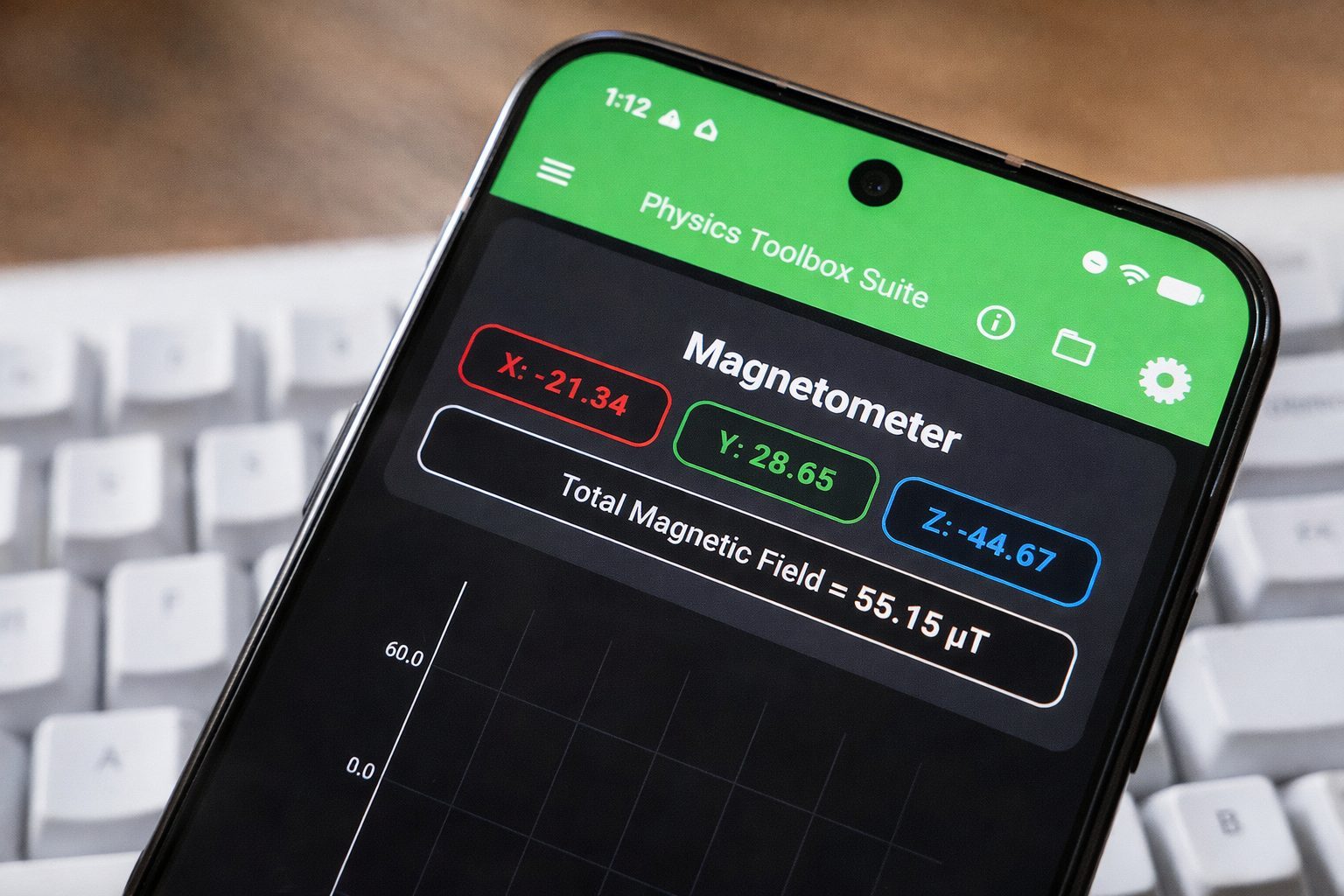
If you want a clean, “serious” readout instead of gimmicks, look for apps that show X/Y/Z axes and allow graphing.
A solid option on Android is Physics Toolbox Sensor Suite, which includes a magnetometer mode and reports magnetic field intensity across axes (x, y, z), with tools like recording and export.
Step 3: Calibrate first (this matters more than people expect)
Before scanning:
- Remove magnetic accessories if possible (cases with magnets, clip-on mounts).
- Move the phone in a figure-eight motion for a few seconds (standard compass calibration practice).
- Step away from large metal objects or electronics while calibrating.
Step 4: Establish a baseline reading
Hold the phone still and note the “normal” reading in your room or outdoors. Your baseline will vary by location, but Earth’s magnetic field is commonly in the ~25–65 µT range depending on where you are. NCEI
Step 5: Scan slowly and close to the target area
- Move the phone slowly, a few centimeters at a time.
- Keep your distance from the surface consistent (changing distance can look like a “signal”).
- Watch for a repeatable spike or consistent increase.
Step 6: Confirm by repeating from another angle
If you see a jump:
- Pull back, approach again from a different direction.
- If the spike appears in the same spot repeatedly, you’re likely seeing a real magnetic disturbance—not random noise.
Quick Android troubleshooting checklist
If it “doesn’t work,” it’s usually one of these:
- You’re trying to detect non-ferrous metal (aluminum/copper/gold won’t reliably register)
- Too much interference from electronics (TVs, speakers, chargers)
- Your app only shows a single number without context—switch to a graphing/axis view
How to use your iPhone as a metal detector
iPhones don’t include a native “Metal Detector” feature in iOS settings, but apps can use the magnetometer/compass behavior to detect magnetic interference.
Step 1: Choose an app that admits the limitations
One example is the Magnetometer app on the App Store, which describes itself as an “easy-to-use metal detector,” but explicitly says it’s not meant to replace a professional-grade metal detector and shouldn’t be used in critical environments. App Store
Another popular category is “metal detector / EMF” apps that show a field meter and graphing, but always check that the app is clear about what it can and can’t detect. App Store
Step 2: Calibrate your compass sensor
On iPhone, calibration varies by model and iOS version, but the same best practices apply:
- Remove magnetic accessories/cases if possible.
- Move the phone gently in a figure-eight pattern.
- Test away from big metal surfaces first.
Step 3: Find where your phone is most sensitive
The magnetometer’s physical location varies by device. A practical trick:
- Bring the phone near a small magnet or metal object and see where the reading changes most (often near the top/back area).
- Then use that “hot spot” when scanning.
Step 4: Use the app like a “magnetic disturbance meter”
- Establish a baseline
- Move slowly
- Confirm repeatable spikes
And don’t do the “movie version” of this—burying your iPhone in sand or trying to “scan” beaches is a fast way to damage a phone, and even app listings warn against treating this like real treasure-hunting gear. App Store
The biggest mistake people make: confusing “metal detection” with “magnetic detection”
This is the difference between finding:
- a dropped steel screw (often possible), versus
- a gold ring (unlikely), or
- a metal object buried deep underground (not realistic)
Even an App Store listing for a magnetometer-based detector spells it out: it can’t detect gold, silver, copper coins because they’re non-ferrous/no magnetic field.
So if you’re using this for real-world tasks (DIY, home repair, hobby searching), set expectations accordingly.
Safety and privacy: what to check before downloading “detector” apps
Utility apps are notorious for overreaching permissions. Before installing:
- Prefer apps that clearly state what they do and what they don’t do (especially if they mention “not a professional detector”). App Store
- Review the App Store / Play Store privacy section. Some apps state “Data Not Collected,” while others may collect usage data. App Store
- Avoid apps that bundle unrelated “spy” features unless you have a specific reason and trust the developer—feature-bloat is where privacy risk often hides.
Today’s mobile news you should know (Jan 15, 2026)
Because these “sensor utility” apps live on your phone, today’s security and OS headlines are directly relevant—especially if you’re installing new tools.
1) CERT-In issues a “critical” advisory for Android users
India’s CERT-In has issued a critical warning urging Android users to update, citing vulnerability note CIVN-2026-0016 tied to a Dolby audio component and the risk of attackers executing code.
If you’re not sure whether you’re protected, Google’s Android Security Bulletin—January 2026 says security patch levels 2026-01-05 or later address the issue and lists the Dolby-related CVE (CVE-2025-54957) as Critical.
2) Android 17 leaks point to major interface changes (especially for foldables)
Reports today highlight potential Android 17 UI changes, including:
- A split notifications/Quick Settings approach (particularly on larger screens)
- The return of separate Wi‑Fi and mobile data toggles in Quick Settings (undoing the combined Internet tile)
Nothing is official until Google ships it, but it’s a reminder that the sensor-driven tools people are rediscovering (like the magnetometer) live inside a rapidly evolving OS experience.
3) Apple’s iOS 26.2 security notes continue to emphasize WebKit risks
Apple’s security documentation for iOS 26.2 / iPadOS 26.2 includes WebKit vulnerabilities where Apple says it is aware of reports they may have been exploited in “extremely sophisticated” targeted attacks on versions of iOS before iOS 26. Apple Support
If you’re testing lots of new apps and visiting sketchy download sites (please don’t), staying current on OS updates matters.
FAQ: quick answers people search for
Does my phone have a built-in metal detector?
Not as a dedicated feature. What people call a “metal detector” is typically an app using the magnetometer (compass sensor) to visualize magnetic field changes. App Store
Can it detect gold or silver?
Usually not reliably. Many magnetometer-style tools explicitly state they can’t detect non-ferrous coins like gold/silver/copper in the way users expect.
How far can it detect metal?
Only at close range, and results vary by device and environment. Smartphone magnetometers don’t transmit energy and aren’t designed for depth detection.
Bottom line
Your phone can absolutely help you detect magnetic disturbances—and that can be useful in everyday life. But it’s not a replacement for real detecting hardware, and it won’t magically find “buried treasure.”
Use a sensor-forward app (graph + axes), calibrate, move slowly, and verify spikes. And given today’s Android security advisory and ongoing OS changes, treat “utility app downloads” like part of your broader digital hygiene: update your device first, then experiment. Android Open Source Project