A factory reset may not fully detach your Android phone from your Google account, leaving “ghost” devices in Google Play and Find Hub. Here’s the 2025 wipe checklist.
If you’re planning to sell, trade in, donate, or recycle an Android phone, you probably think you already know the drill: Settings → Factory reset → Done.
But a growing number of Android users are discovering an annoying (and sometimes confusing) reality: wiping the phone doesn’t always wipe the phone’s footprint from your Google account. Today, a report from Android Authority highlights how a simple factory reset can leave “ghost” traces of a device across Google services—especially in Find Hub and the Google Play device list—unless you do one critical step first. 1
The short version: remove your Google account from the device before you reset it. The longer version (and why it matters) is below.
What’s going on: Why a factory reset can still leave your phone “attached” to your Google account
In the Android Authority report (published Dec. 31, 2025), longtime Android user Rita El Khoury describes how factory-resetting phones the usual way eventually left her with device “ghosts” showing up in multiple places tied to her Google account—most notably Find Hub and myaccount.google.com’s device activity. In her example, a reset Pixel still lingered as an unhelpful stub: it showed an old “last seen” location, wouldn’t update, and couldn’t be meaningfully removed inside Find Hub. 1
This matters because Find Hub (Google’s device-finding service) isn’t just a list—it’s also where you can take actions like remotely securing a device or requesting a factory reset (when it’s online and reachable). Google Help
If an old phone is permanently “hanging around” as an unreachable entry, it can clutter your account and make it harder to quickly see what’s actually active.
The key mistake: Resetting first, signing out later
Google’s own help documentation for Google Play is blunt about one important point: removing a device from the Play Store device list isn’t really a thing. Google states you can’t remove devices from the list on Google Play, but you can hide them—and, crucially, if you’re giving away or selling a device, Google recommends you remove your Google account from the device before you factory reset it. 2
Android Authority’s main takeaway aligns with that: a factory reset alone may not “de-authorize” the phone cleanly across Google services, but signing out / removing the account first tends to resolve the lingering “ghost device” problem. 1
Why this matters right now: Trade-ins, hand-me-downs, and year-end upgrades
End-of-year upgrades (holiday gifts, sales, trade-in promos) often mean one thing: lots of phones getting wiped and passed to someone else.
When you reset incorrectly, you risk:
- Account clutter: old devices lingering in Find Hub, Google Play, and account device lists. 1
- Confusion over “last seen” activity: Google’s device list timestamps can reflect the last time a device communicated with Google systems, which can be more recent than you expect—even after you stopped using it. 3
- A painful handoff for the next owner: Android’s anti-theft protections (often referred to as Factory Reset Protection/FRP) are designed to stop stolen phones from being reused after a wipe. If you don’t remove accounts properly, the next person could be locked out—and you may have to help them later. 4
The correct way to factory reset an Android phone in 2025 (Google-friendly checklist)
Exact menus differ by brand (Pixel, Samsung, OnePlus, Xiaomi, etc.), but the order of operations is what counts.
1) Back up what you want to keep
Google’s Android help guide stresses that a factory reset erases all data on the phone, uninstalling apps and deleting local app data. Back up first if you want to restore later. 4
Quick backup reminders (common misses):
- Photos/videos not syncing to Google Photos
- WhatsApp/Signal backups (app-specific)
- Authenticator apps (2FA codes)
- Local files in Downloads
2) Make sure you know your login details (seriously)
Before you wipe, confirm you know:
- Your Google account email on the device
- The password
- Your device PIN/pattern/password
Google notes you’ll need security info after a reset to prove you (or someone you trust) performed it. And there’s an important warning: if you recently changed your Google Account password, wait 24 hours before doing a factory reset. 4
3) Remove your Google account(s) from the phone first
This is the step many people skip.
On most Android phones you can do something like:
- Settings → Accounts (or “Passwords & accounts” / “Users & accounts”)
- Select your Google account
- Tap Remove account
This helps detach the phone from your Google account before you wipe it, which is exactly what Google Play’s help guidance recommends for devices you’re selling or giving away. 2
It also lines up with Android Authority’s observation that removing the account first is what finally cleared ghost devices across Google services. 1
4) Remove other accounts and protections tied to the device
If you’re handing the phone to someone else, also consider:
- Samsung account / Xiaomi account / OnePlus account (vendor lock features vary)
- Work profiles / MDM (company-managed phones may need admin removal)
- Banking apps and password managers (sign out)
5) Factory reset from Settings (not just recovery, if you can avoid it)
Google’s official Android instructions note that most phones can be reset through Settings, and if you can’t open Settings you may need button-based recovery reset instead. 4
Generally:
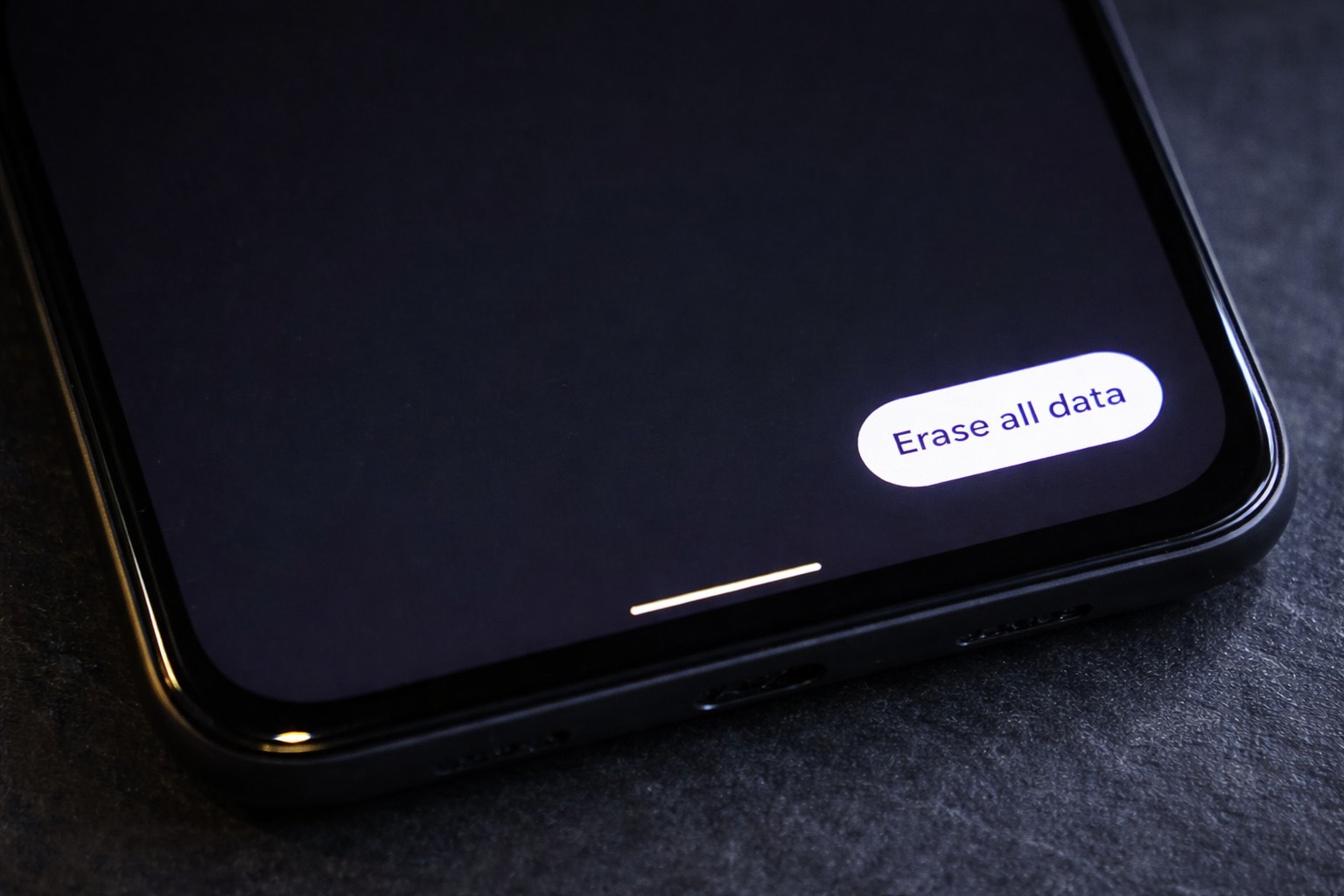
- Settings → System → Reset options → Erase all data (factory reset)
(Wordings vary by manufacturer.)
6) After the reset: do a quick “ghost device” cleanup check
Once the phone is wiped and no longer yours, check these two places:
- Google Account → Security → Your devices → Manage all devices (to sign out of old sessions) 3
- Google Play device list (where you can hide devices you no longer use) 2
Already wiped the phone? Here’s how to reduce the “ghost device” problem
If the phone is already factory reset and out of your hands, Android Authority’s report suggests that the most effective fix is to use your Google account device activity area and sign out of the old device/session, which can remove it from multiple Google services. 1
Google’s “See devices with account access” help page explains where to find this and how to sign out under Your devices → Manage all devices. 3
And if your issue is specifically “it keeps showing up in Google Play,” Google’s Play help page explains you may not be able to delete it, but you can hide it. 2
Find Hub vs. Google Play vs. “Device activity”: why you’re seeing duplicates
Part of the frustration is that these systems don’t all behave the same way:
- Find Hub is designed for locating and securing devices (and can request a remote factory reset when reachable). 5
- Google Play’s device list is tied to installs, compatibility, and purchase history—and Google explicitly says you can’t remove devices, only hide them. 2
- Google Account “Your devices” is more about security sessions and account access history. Google notes you might still see devices even after a reset. 3
So if you factory reset without signing out first, you can end up with a phone that’s “gone” physically but still present digitally in one or more of these places.
A quick resale / trade-in checklist (copy-paste friendly)
Before you hand off an Android phone:
- Back up your data (photos, files, chats, 2FA) 4
- Confirm you know your Google credentials and phone unlock PIN 4
- Remove your Google account(s) from the phone 2
- Remove other vendor accounts (Samsung/Xiaomi/etc.)
- Factory reset from Settings 4
- Check your Google Account device list and sign out of old sessions if needed 3
- Hide the device in Google Play if it still shows up 2
The bottom line
A factory reset still matters—it’s the core step for wiping your data. But if you want a clean break from Google’s side (and you don’t want old phones stuck as “ghosts” in Find Hub or your account lists), the safer order in 2025 is:
Remove Google account(s) → then factory reset.
That simple swap in sequence is the difference between a phone that’s merely wiped and a phone that’s truly disassociated from your Google identity—exactly the problem Android Authority spotlighted today. 1