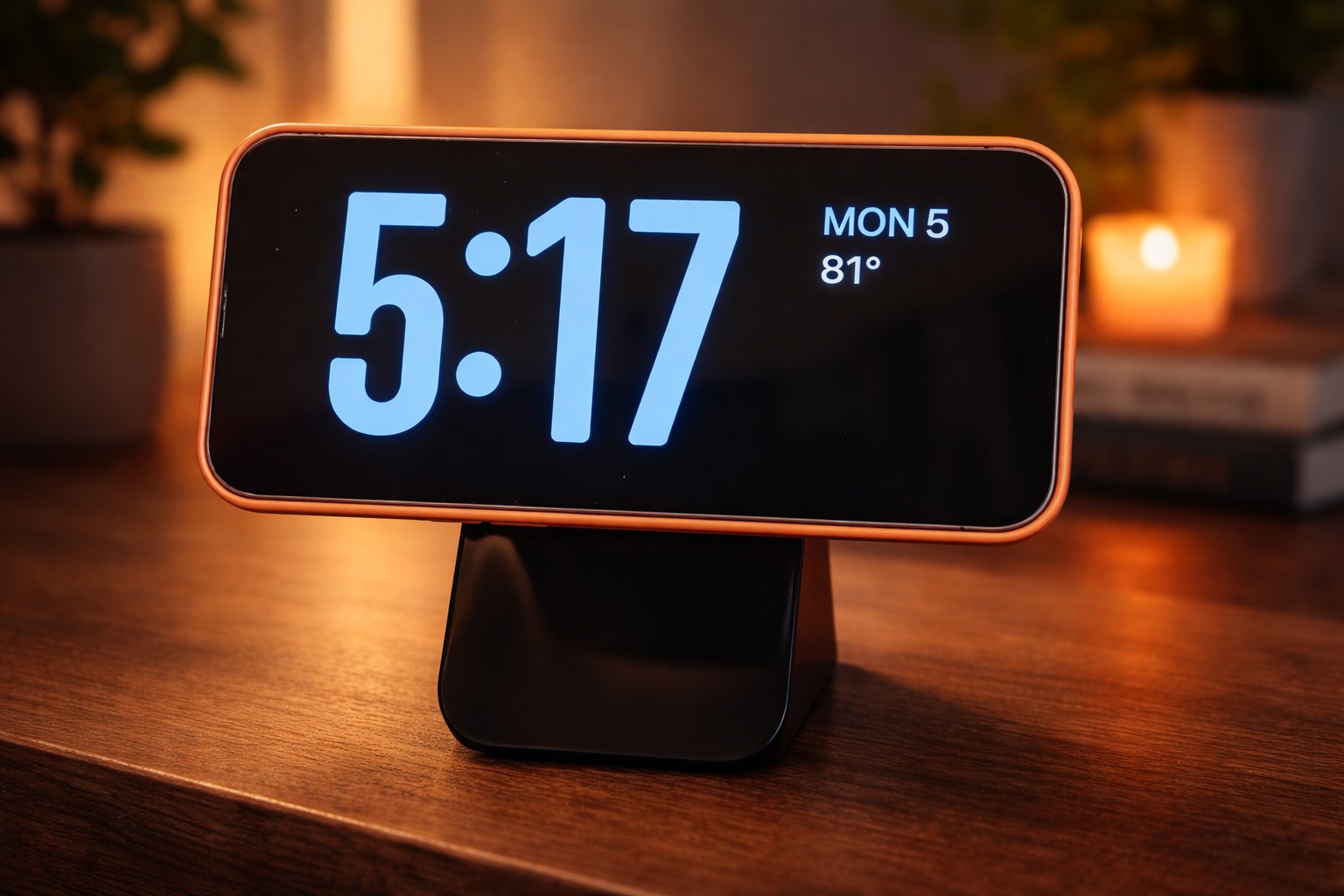
If you’ve ever wished your iPhone could do more while it’s just sitting on a charger, StandBy mode is the feature built for exactly that. In iOS 26, StandBy can turn an idle iPhone into a glanceable smart display—a bedside clock, a photo frame, a widget dashboard, or even a Live Activities “now playing” screen when music is running. [1]
And as of January 3, 2026, StandBy’s moment makes sense: today’s iOS coverage is heavily focused on personalization (especially in iOS 26.2), while iOS 26.3 remains in beta with more changes on deck. [2]
Below is a detailed, publication-ready guide to what StandBy is, how to enable it, how to customize it, and what’s new in iOS right now that makes StandBy even more useful.
What is iPhone StandBy mode?
StandBy is a special Lock Screen experience that appears when your iPhone is charging and placed in landscape orientation (on its side). It’s designed to display useful information from a distance—like time, weather, widgets, photos, and Live Activities—so your phone becomes helpful even when you’re not actively using it. [3]
In practice, it’s the iPhone’s answer to a “mini smart display”: perfect for a nightstand, desk, kitchen counter, or anywhere you park your phone on a charger. [4]
How to enable iPhone StandBy mode
1) Check that StandBy is turned on
StandBy is controlled in iPhone Settings. If you’ve never used it, start by confirming it’s enabled.
2) Put your iPhone in the right position
To trigger StandBy, Apple’s guidance is simple:
- Connect iPhone to a charger
- Place it on its side (landscape)
- Tap the screen if needed to wake the StandBy display [5]
Many guides add an important practical detail: your iPhone generally needs to be locked, charging, steady, and angled (not flat on a table). That’s why a charging stand (MagSafe/Qi) is the easiest setup, although a cable + a prop works too. [6]
The 3 StandBy screens you can swipe between
Once StandBy is active, you can swipe left/right between three main views:
- Widgets view (dual widgets, side-by-side)
- Photos view (a rotating photo display)
- Clock view (full-screen clock faces)
This “three screen” structure is a big part of why StandBy feels customizable rather than just decorative. [7]
How to customize StandBy like a pro
Here’s the key trick: you can only edit StandBy while it’s active.
Customize any StandBy screen
- Enter StandBy (charging + landscape).
- Tap and hold on the screen to edit the current view.
- Swap widgets, adjust photo categories, or change clock colors depending on the view you’re on. [8]
Build a better widget dashboard
In the dual widget layout:
- You can place two widget stacks side-by-side.
- Swipe up/down on each stack to cycle through widgets.
- Long-press to add/remove widgets from each stack. [9]
Cult of Mac also notes there are practical limitations (for example, it’s not a “one huge medium widget” layout), but the widget selection is broad—including Apple apps like Weather, Calendar, Reminders, Music, Podcasts, Home, and more. [10]
Set up StandBy differently in different places
One of StandBy’s underrated behaviors: if you use multiple charging stands, it can remember the last view used on each stand—so your desk setup can look different from your nightstand setup without extra effort. [11]
Make StandBy genuinely useful with Live Activities
StandBy isn’t just static widgets. When Live Activities are running (music playback, timers, deliveries, etc.), StandBy can surface them prominently.
- You’ll see a small Live Activity indicator.
- Tap it to go full-screen for big, easy controls.
- Swipe up to return. [12]
This is one of the best “desk mode” uses: keeping your iPhone on a stand as a big now-playing controller while you work (or while audio plays on a HomePod). [13]
StandBy alarms and notifications are designed for sleepy humans
If your iPhone alarm goes off while you’re in StandBy, the interface shifts to large, easy-to-hit buttons (not tiny controls you’ll miss half-asleep). StandBy notifications also appear large and readable, and you can dismiss them with a swipe. [14]
Cult of Mac notes that iOS 26 uses a similar “big-button” design style in the regular alarm interface as well (though in a portrait layout). [15]
StandBy display settings you should change (especially on a nightstand)
If you’re using StandBy as a bedside clock, the first setting to check is how long the display stays on.
Apple’s iPhone guide includes StandBy display preferences here:
Settings → StandBy → Display, then choose:
- Automatically (display turns off when iPhone isn’t in use and the room is dark)
- After 20 Seconds
- Never (stays on as long as StandBy is on) [16]
These options matter because StandBy is often used overnight, and people balance “always visible” with battery and room brightness. [17]
The iOS 26.2 and iOS 26.3 context behind today’s StandBy interest
StandBy itself isn’t “new” this week—but the iPhone’s overall Lock Screen + widget personalization story is getting more attention again as 2026 starts, and that makes StandBy more relevant.
iOS 26.2: the personalization wave that’s still rolling
Apple released iOS 26.2 on December 12, 2025, according to Apple’s developer release timeline. [18]
Major publications have continued to spotlight iOS 26.2’s customization angle, including:
- A Liquid Glass clock opacity slider in Lock Screen customization
- New features spanning Apple Music, Reminders, accessibility, and more [19]
And today (Jan 3, 2026), Geeky Gadgets is still leading with iOS 26.2’s “makeover” framing—highlighting personalization features like Liquid Glass styling, widgets, and interface visibility controls. [20]
Even if these iOS 26.2 changes aren’t “StandBy-only,” they reinforce Apple’s bigger direction: your iPhone is increasingly meant to be glanceable, customizable, and useful while idle—exactly the space StandBy occupies. [21]
iOS 26.3: beta now, with a release expected later this month
Apple’s developer release page shows iOS 26.3 beta was posted on December 15, 2025. [22]
MacRumors reports that iOS 26.3 includes:
- A simpler way to transfer data to Android when switching platforms
- Notification Forwarding for third‑party wearables in the EU
…and that iOS 26.3 is expected around the end of January. [23]
For StandBy users, the key takeaway is simple: iOS is still evolving quickly, and the “at-a-glance” experience (Lock Screen + widgets + displays) is one of Apple’s most active design areas right now. [24]
Accessories are leaning into the “landscape iPhone” trend
Today’s accessory news also reflects a broader shift: more products are being built around phones used while mounted, charging, and visible.
On January 3, iClarified reports that Clicks announced:
- The Clicks Communicator (a messaging-focused companion phone)
- The Clicks Power Keyboard, a magnetic Bluetooth accessory compatible with MagSafe and Qi2 devices, including its own battery that can wirelessly charge the attached phone, and rotation support for landscape typing [25]
While this is not a StandBy-specific product, it’s part of the same “phone-as-a-surface” movement: iPhone accessories increasingly assume your phone will spend time mounted and used in landscape—the same posture StandBy depends on. [26]
Why StandBy may be bigger than your nightstand in 2026
One of the more interesting signals this week: StandBy is being talked about as a blueprint for future Apple hardware.
Tom’s Guide, in a look-ahead at Apple’s 2026 product roadmap, suggests a rumored smart home display device (sometimes described as “HomePod Touch” / “HomePad”) could put widgets front-and-center—“think a beefed-up version of the iPhone’s StandBy Mode.” [27]
If Apple does ship a home display with that philosophy, it would validate what StandBy already proves: a glanceable, widget-first screen is often more useful than another notification-heavy phone interface. [28]
Quick StandBy troubleshooting checklist
If StandBy isn’t showing up (or doesn’t behave the way you expect), run through these fast checks:
- Is the iPhone charging? (StandBy is designed for charging scenarios.) [29]
- Is the iPhone in landscape orientation and stable? A stand helps a lot. [30]
- Is your iPhone locked? Many guides note StandBy works as a Lock Screen experience. [31]
- Did you try tapping the screen? Apple explicitly mentions tapping to bring up StandBy. [32]
- Do you need to change how long it stays on? Adjust StandBy’s Display setting (Automatically / After 20 Seconds / Never). [33]
Bottom line: StandBy is still one of the easiest “hidden upgrades” for your iPhone
If you’re heading into 2026 looking for a simple way to make your iPhone feel more like a smart home display (without buying new hardware), StandBy mode is the fastest win: set it up once with a charging stand, tailor your widgets and clock, and let your iPhone do something useful while it sits there.
And with iOS 26.2’s continued push toward personalization—and iOS 26.3’s beta cycle underway—Apple’s “glanceable” philosophy is only getting stronger. [34]

References
1. support.apple.com, 2. www.geeky-gadgets.com, 3. support.apple.com, 4. www.cultofmac.com, 5. support.apple.com, 6. www.macrumors.com, 7. www.cultofmac.com, 8. www.cultofmac.com, 9. www.cultofmac.com, 10. www.cultofmac.com, 11. www.cultofmac.com, 12. www.cultofmac.com, 13. www.cultofmac.com, 14. www.cultofmac.com, 15. www.cultofmac.com, 16. support.apple.com, 17. support.apple.com, 18. developer.apple.com, 19. www.macrumors.com, 20. www.geeky-gadgets.com, 21. www.geeky-gadgets.com, 22. developer.apple.com, 23. www.macrumors.com, 24. www.macrumors.com, 25. www.iclarified.com, 26. www.iclarified.com, 27. www.tomsguide.com, 28. www.tomsguide.com, 29. support.apple.com, 30. www.macrumors.com, 31. www.macrumors.com, 32. support.apple.com, 33. support.apple.com, 34. www.cultofmac.com